
V tomto dokumente pomocníka sa dozviete, ako funguje prístup k účtu – prostredníctvom používateľov, rolí a skupín používateľov a ako sa prideľujú jednotlivé oprávnenia.
V Správe používateľov účet spravuje svojich interných členov tímu a ich prístup k platforme ViaSpaces. Prístup sa skladá z troch prvkov: roly určujú, aké operácie môže používateľ vykonávať, skupiny používateľov umožňujú prideliť roly a prístup viacerým používateľom súčasne a pracovné priestory určujú, ktoré dokumenty môže používateľ zobraziť. Správu používateľov otvoríte cez Nastavenia.
Používatelia #
Sekcia Používatelia slúži na správu jednotlivých osôb v rámci účtu. Každý používateľ je pozvaný e-mailom a má priradené roly, skupiny používateľov a pracovné priestory, ktoré určujú, aké operácie môže vykonávať a aký obsah môže zobrazovať.
Pozvanie používateľa #
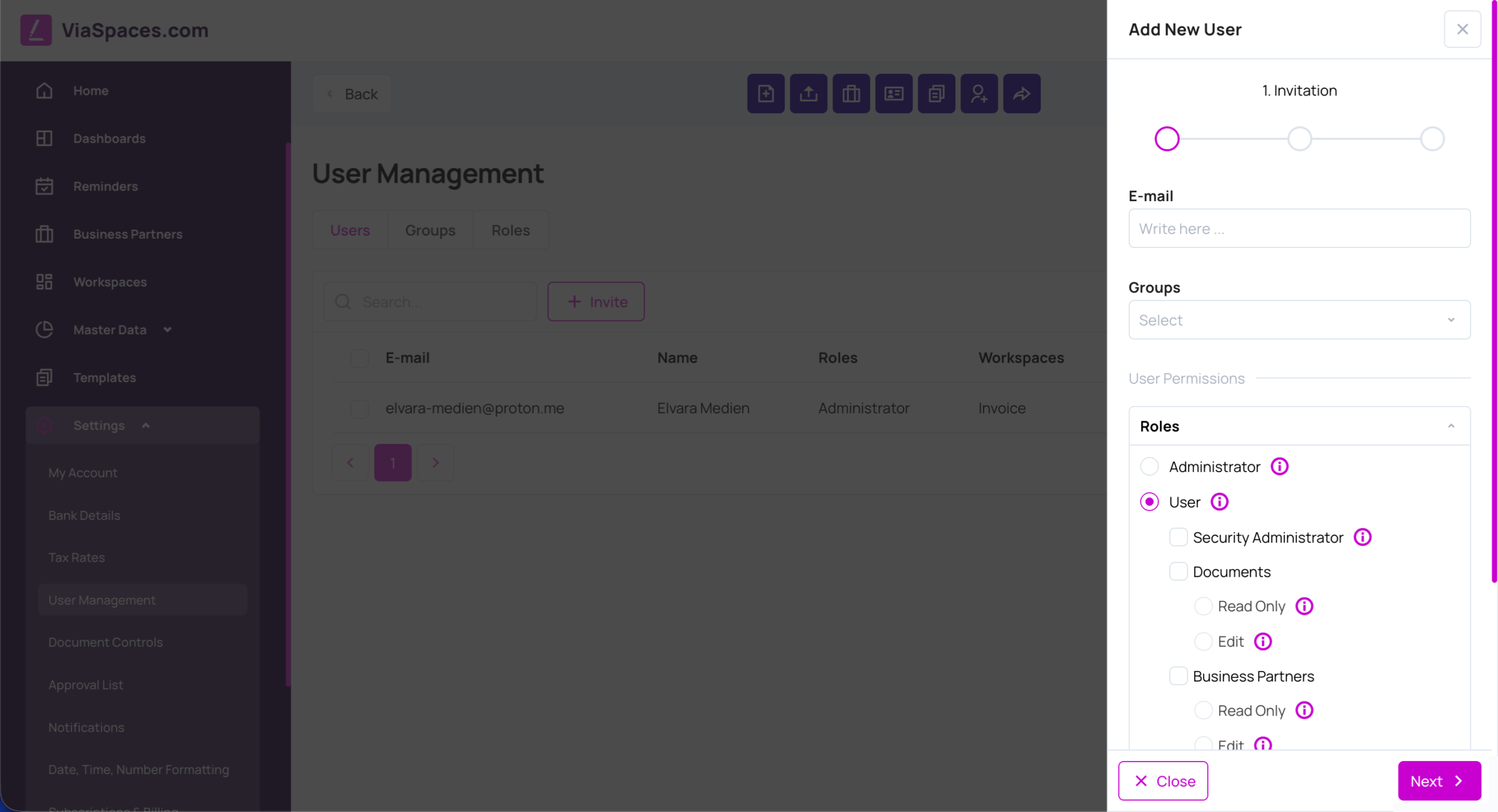
Pozvite používateľa pomocou možnosti Pozvať. Prístupové práva používateľa sa počas procesu pozvania nastavujú v jednotlivých krokoch:
- Zadajte e-mailovú adresu a vyberte skupiny používateľov a roly.
- Voliteľne vyberte pracovné priestory, projekty a partnerov, ku ktorým má mať používateľ prístup.
- Skontrolujte zadané údaje a odošlite pozvánku.
Pozvaný používateľ môže prístup k účtu prijať alebo odmietnuť. Kým pozvanie neprijme, zobrazuje sa so stavom „Pozvaný“.
Zoznam používateľov #
Karta Používatelia zobrazuje všetkých používateľov v účte spolu s ich e-mailovou adresou, menom, rolami, priradenými pracovnými priestormi, skupinami a stavom (napríklad Aktívny alebo Neaktívny).
Správa používateľov #
Každého používateľa je možné zobraziť, upraviť alebo odstrániť. Úpravou používateľa môžete zmeniť jeho roly, skupiny používateľov a pracovné priestory, čím sa zároveň zmenia jeho oprávnenia a rozsah prístupu v rámci účtu.
Skupiny používateľov #
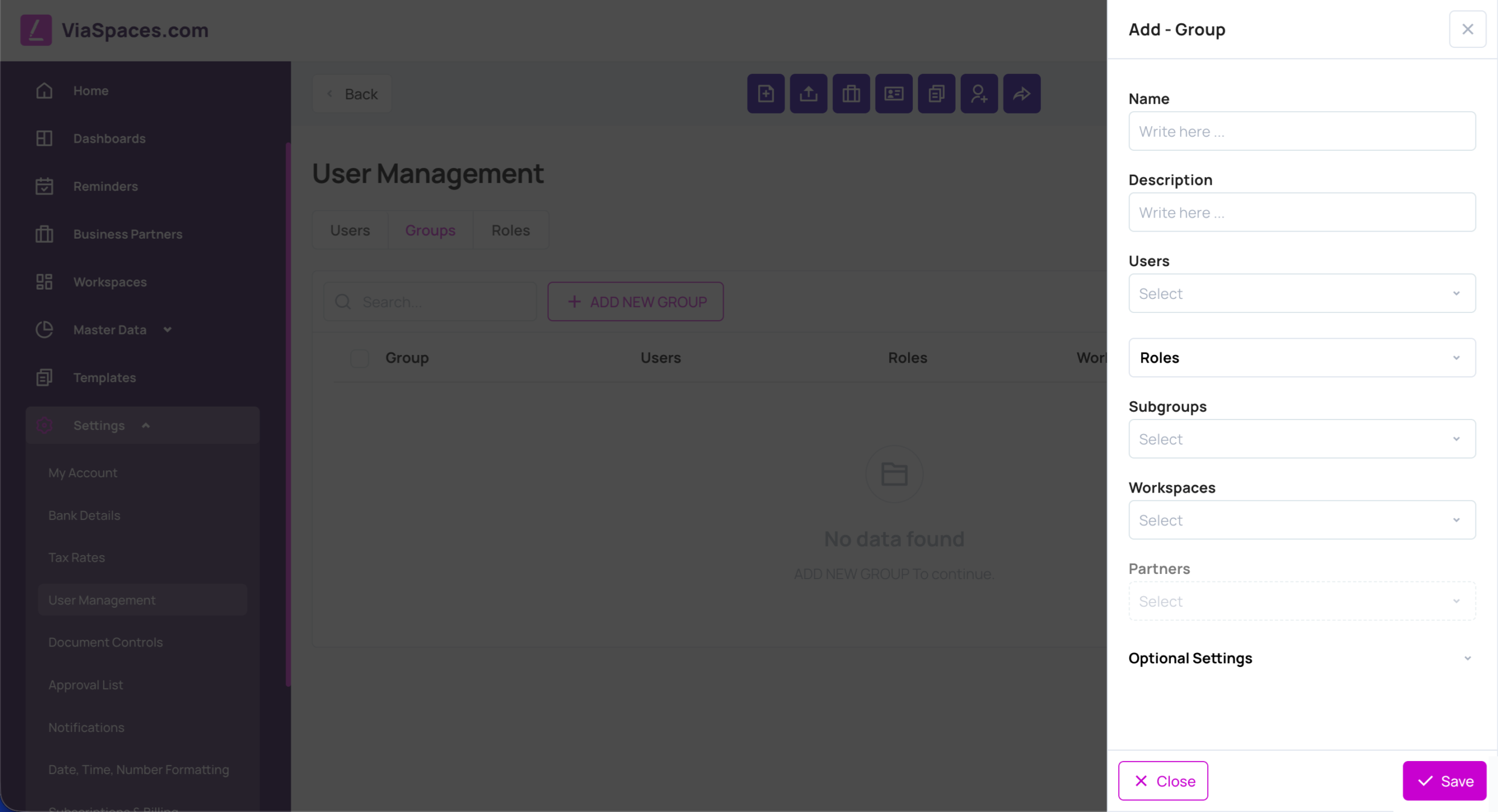
Skupiny používateľov organizujú používateľov do tímov alebo oddelení, vďaka čomu je možné spravovať oprávnenia a prístup pre viacero osôb naraz namiesto samostatného nastavovania každého používateľa.
Skupina obsahuje:
- Používatelia — členovia skupiny, ktorí preberajú prístupové práva danej skupiny.
- Roly — oprávnenia pridelené skupine.
- Pracovné priestory — pracovné priestory, ku ktorým má skupina prístup.
- Podskupiny — ďalšie skupiny vnorené do tejto skupiny, ktoré umožňujú vytvoriť viacúrovňovú štruktúru.
- Voliteľné nastavenia — vlastné filtre oprávnení, ktoré pomocou predikátu spresňujú prístup na úrovni polí.
Role #
Roly sú definované v pevnom zozname. Prideľujú sa používateľom a skupinám. Karta Roly slúži ako prehľad a zobrazuje jednotlivé roly spolu s ich popisom a používateľmi a skupinami, ktorým sú priradené. Väčšina rolí sa riadi modelom Contributor a Reader: Contributor môže v rámci danej oblasti vytvárať a upravovať obsah, zatiaľ čo Reader má iba prístup na čítanie. Rola môže zahŕňať aj ďalšie roly a preberať ich oprávnenia.
| Rola | Povolené operácie |
|---|---|
| Administrátor | Neobmedzený prístup. Prístup ku všetkým modulom a funkciám účtu vrátane informácií o účte. |
| Bezpečnostný administrátor | Úplný prístup k pracovným priestorom a správe používateľov. Túto rolu musí mať vždy priradenú aspoň jeden používateľ. |
| Manažér účtovníctva | Úplný prístup k účtovníctvu a prístup na čítanie k dokumentom a základným údajom. |
| Prispievateľ dokumentov | Vytváranie a úprava dokumentov: Vytvoriť nový dokument, Editor dokumentov, Dokumenty, Nahrať dokument, Dashboard a Kôš (okrem trvalého odstránenia). Zahŕňa aj prístup na čítanie k základným údajom. |
| Čitateľ dokumentov | Iba zobrazovanie dokumentov. Prístup na Domovskú stránku (okrem Pozvánok) a Dashboard (okrem možností Nový dokument, Nahrať dokument a Exportovať). Koncepty sa zobrazujú v zozname, ale nie je možné ich otvoriť v Editore dokumentov. |
| Prispievateľ základných údajov obchodných partnerov | Vytváranie a úprava obchodných partnerov, odosielanie registračných odkazov a správa pozvánok na Domovskej stránke. |
| Čitateľ základných údajov obchodných partnerov | Iba zobrazovanie obchodných partnerov. |
| Prispievateľ základných údajov položiek | Vytváranie a úprava položiek v základných údajoch. |
| Čitateľ základných údajov položiek | Iba zobrazovanie položiek. |
| Prispievateľ základných údajov projektov | Vytváranie a úprava projektov v základných údajoch. |
| Čitateľ základných údajov projektov | Iba zobrazovanie projektov. |
| Administrátor šablón | Úplný prístup k šablónam. |
| Používateľ | Základná rola. Zahŕňa prístup k funkciám Moje pripomienky, Pripomienky, osobným nastaveniam notifikácií a Odoslať spätnú väzbu. Táto rola je súčasťou každej ďalšej roly. |
Poznámka: Roly majú v tejto časti iba informačný charakter – je možné ich zobraziť a priraďovať, nie však upravovať. Zoznam rolí je pevne definovaný.
(screenshot: Roles tab listing each role with its users and groups)
Workspaces #
Pracovný priestor predstavuje samostatne vymedzenú oblasť prístupu v rámci účtu: používatelia a skupiny priradené k pracovnému priestoru vidia dokumenty, ktoré sú k nemu priradené. Každý tím tak môže pracovať iba s dokumentmi, ktoré patria do jeho pracovného priestoru. Pracovné priestory sa zároveň zdieľajú s partnermi po prijatí vizitky. Vytváranie a správa pracovných priestorov sú opísané na stránke „Pracovné priestory“.
Prístup k reportom #
Úprava používateľa, skupiny alebo roly ovplyvňuje prístupové práva v rámci celého účtu. Roly, skupiny a pracovné priestory priradené používateľovi sa zobrazujú v jeho zázname, vďaka čomu je možné prehľadne zistiť, kto má prístup ku ktorým oblastiam.