
The user profile is the login identity used to reach accounts. Its functions are available from the user menu in the top-right corner.
User Menu #
The user menu opens from the top-right corner, both on the My Accounts page and inside an open account.
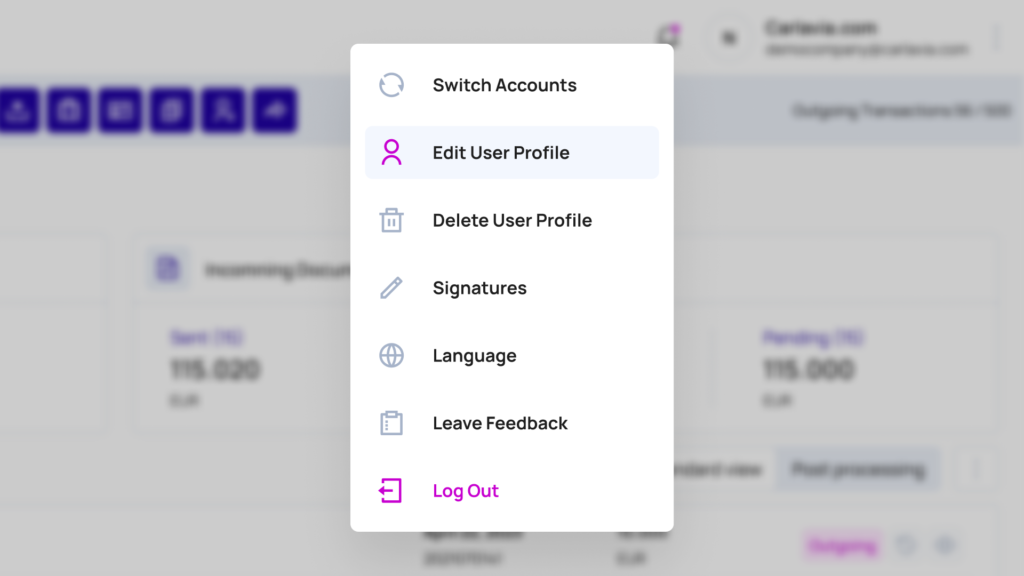
| Function | Availability |
|---|---|
| Edit User Profile | My Accounts page and inside an account. |
| Language | My Accounts page and inside an account. |
| Signatures | Inside an open account. |
| Leave Feedback | My Accounts page and inside an account. |
| Delete User Profile | My Accounts page and inside an account. |
| Log out | My Accounts page and inside an account. |
Log out ends the session and returns to the sign-in page.
Edit User Profile #
Edit User Profile holds the personal details shown across the application and the password change action.
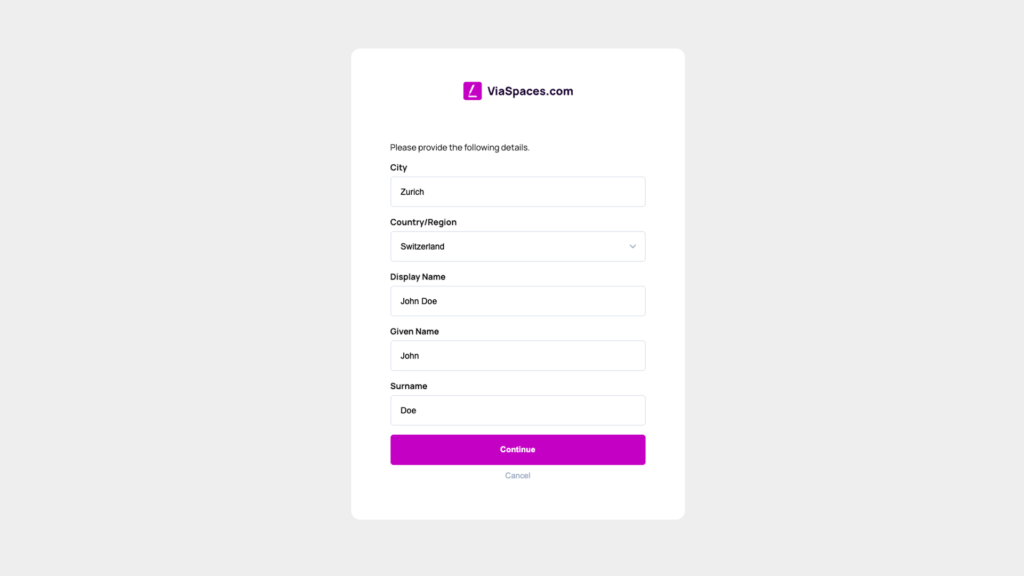
| Field | Value |
|---|---|
| City | City of the user. |
| Country/Region | Country or region of the user. |
| Display Name | Name shown in the application. |
| Given Name | First name. Required. |
| Surname | Last name. Required. |
Procedure:
- Open the user menu and select Edit User Profile.
- Change the field values.
- Save the changes.
Given Name and Surname are required. Clearing either field displays a validation error directly above that field, and the save is held until a value is entered.
Cancelling the edit discards the changes and keeps the stored values. Saved values appear consistently everywhere the name or display name is shown.
Password change is performed in Edit User Profile.
⚠️ Needs verification — the procedure for changing the sign-in email address is absent from the available sources. Confirm in the live product.
Language #
The Language side panel sets the application language. The setting is stored with the user profile and applies across accounts.
- Open the user menu and select Language.
- Select a language in the side panel.
- Click Save.
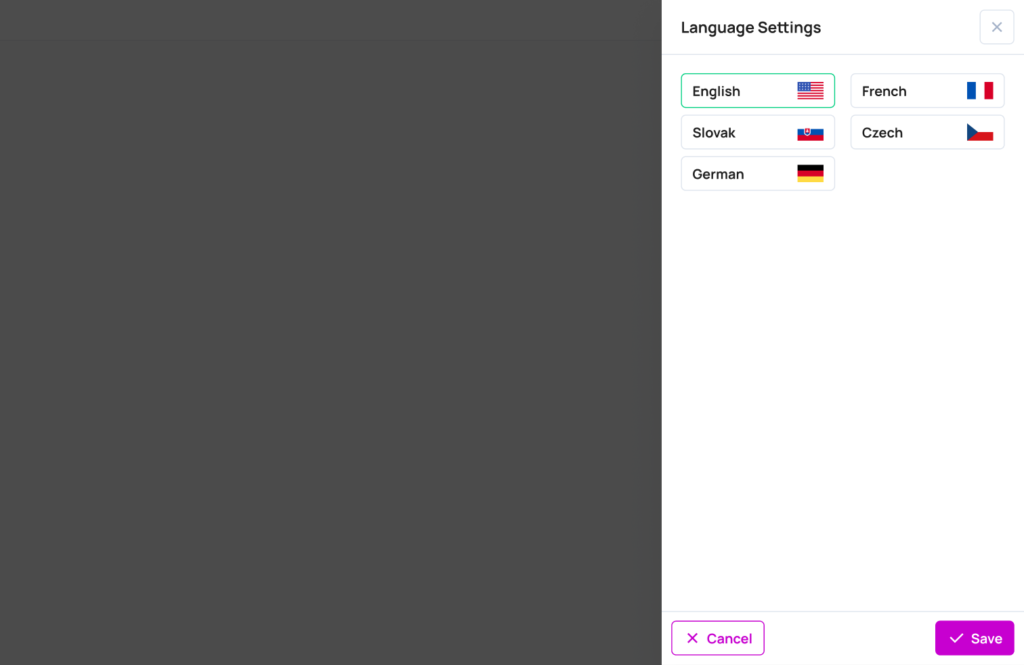
| Language |
|---|
| English |
| Slovenčina |
| Čeština |
| Deutsch |
The language changes after Save is pressed.
Signatures #
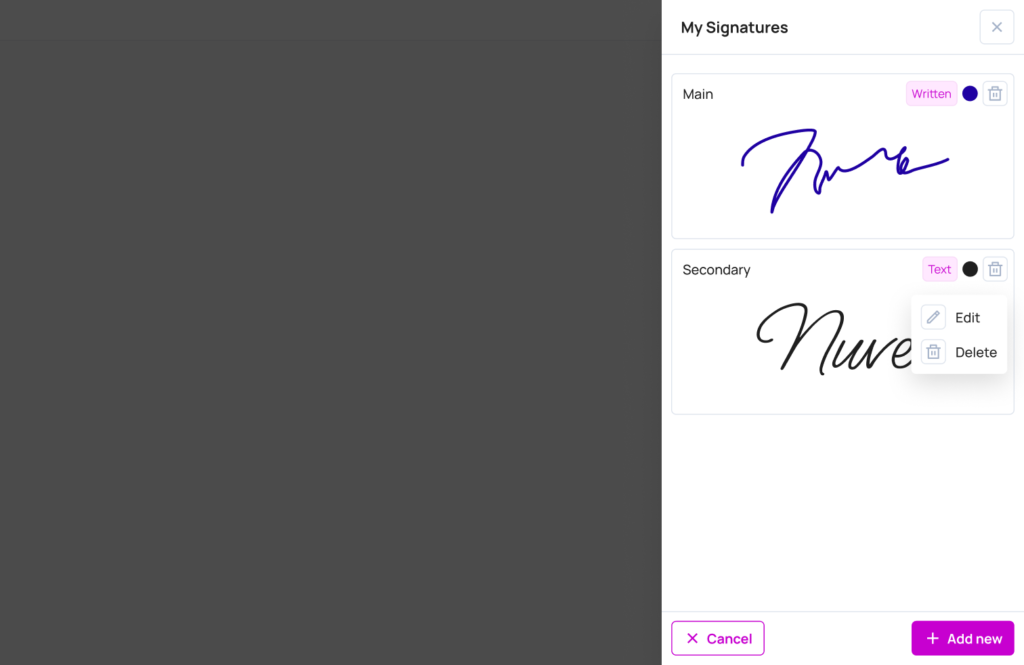
Signatures are stored locally for the open account. The Signatures panel is available when an account is open, and the signatures created there belong to that account.
Procedure:
- Open an account.
- Open the user menu and select Signatures. The My Signatures sidebar opens on the right.
- Click Add New.
- Select a creation mode.
- Complete the signature and save it.
| Creation mode | Description |
|---|---|
| Upload | Uses an image file. |
| Write | Draws the signature. |
| Type | Generates the signature from typed text. |
Upload constraints:
| Constraint | Value |
|---|---|
| Maximum dimensions | 300 × 150 px |
| Maximum file size | 50 kB |
| Format | Allowed image format |
Saved signatures are listed in the My Signatures sidebar and can be deleted individually.
Leave Feedback #
Leave Feedback submits a message to the ViaSpaces team.
- Open the user menu and select Leave Feedback.
- Enter the message in the dialog.
- Attach a screenshot, optionally.
- Submit.
A confirmation message is displayed after submission.
Delete User Profile #
Profile deletion is handled manually by the support team.
- Open the user menu and select Delete User Profile.
- The Request user deletion page opens and states that deletion is handled manually by the support team.
- Click Contact Support. The mail action opens for contacting support.
ℹ️ Account lock and deletion are separate from profile deletion and are covered on the Create Account page.