Before you can work with documents in ViaSpaces, you need to register and create a user profile.
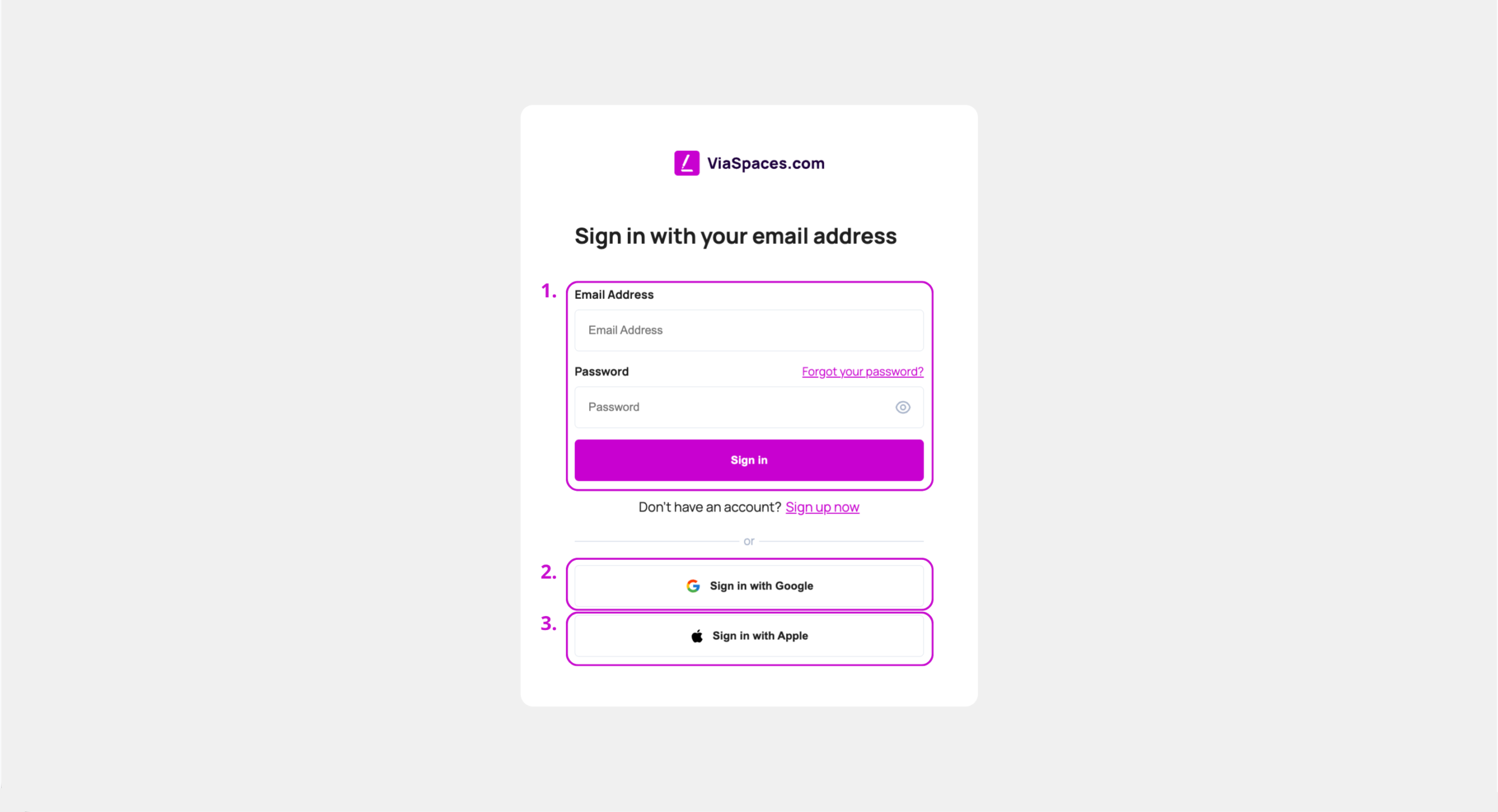
You can sign up and register using the following ways:
- Email and a password
- Google Account
- Apple ID
It’s important to remember what method you used to sign-up, that’s the method you will use to log in.

Hint: The easiest way to register is to sign up using your Google account.

Note: Signing up creates your user profile — your personal login to ViaSpaces. From your profile you then create an account, either Business for a company or Personal for an individual.
Sign Up With Email and Password #
- Click Sign up now.
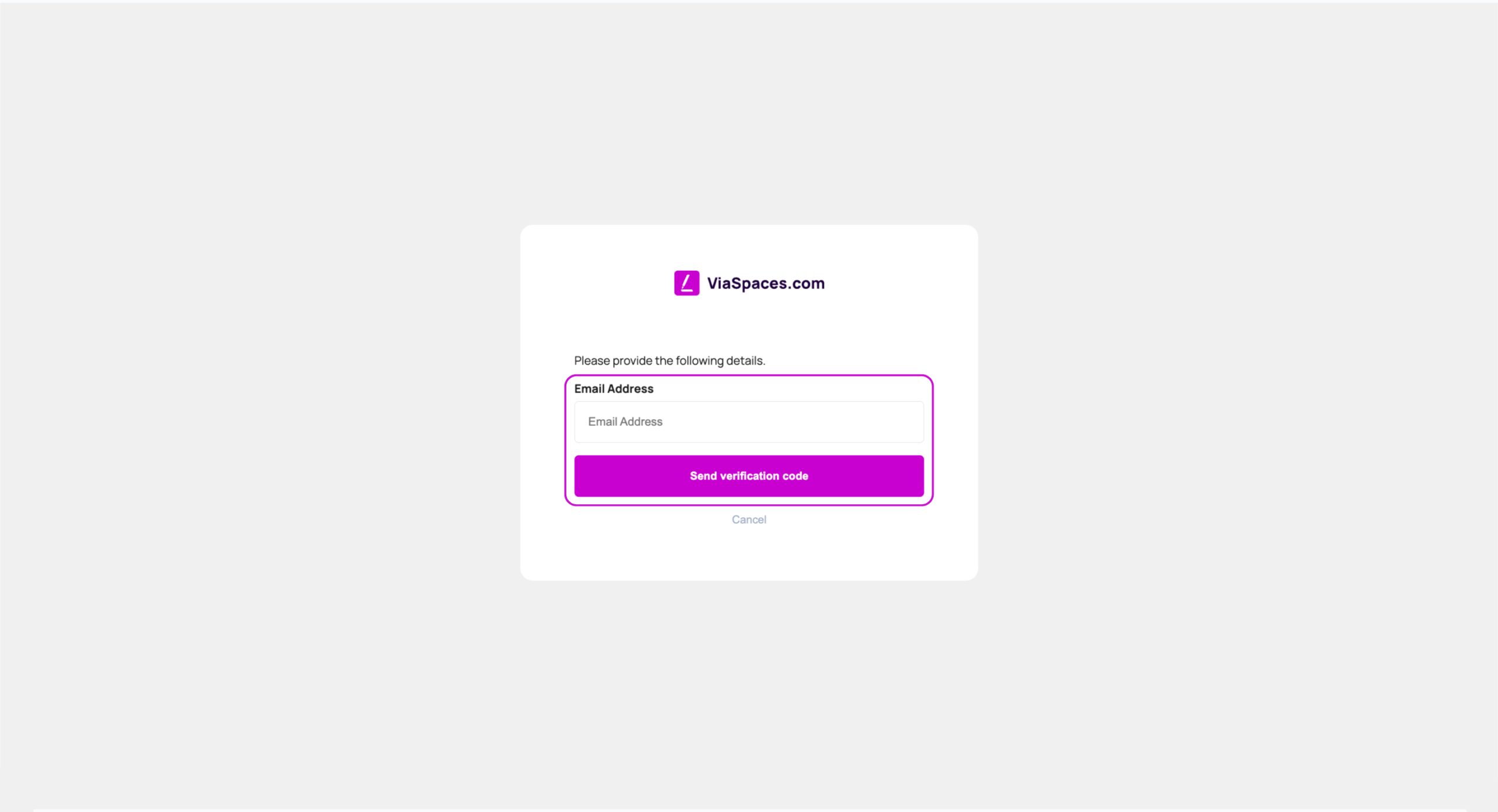
- Enter the email address.
- Click Send verification code.
- Retrieve the code from the mailbox.
- Enter the code and click Verify code.
- Enter New Password and Confirm New Password.
- Complete the profile fields.
- Click Create.
| Field | Value |
|---|---|
| Address that receives the verification code. | |
| Verification Code | Code sent to the entered address. |
| New Password, Confirm New Password | Password for local sign-in. Both entries match. |
| City | City of the user. |
| Country/Region | Country or region of the user. |
| Display Name | Name shown in the application. |
| Given Name | First name. |
| Surname | Last name. |
Sign Up with Google #
- Click the Google logo.
- Select the Google account.
- Complete Google authentication.
- Click Send verification code.
- Retrieve the code from the mailbox, enter it, and confirm.
- Complete the profile fields: City, Country/Region, Display Name, Given Name, Surname.
- Click Continue.
Fields prefilled from the Google profile remain editable during registration.
Sign In #
You login into the plaform using the same method you used during the registration.
If for example you have registered using your Gmail, then you login using your Gmail. If you have registered using your email and a password, then use those to login.
Password Reset #
Password reset applies to a profile registered with email and password.
- Click Forgot your password?
- Enter the email address.
- Retrieve the code from the mailbox and enter it.
- Set the new password.
- Sign in with the new password.
A profile registered with Google/Apple holds its password in Google/Apple and is reset there.