
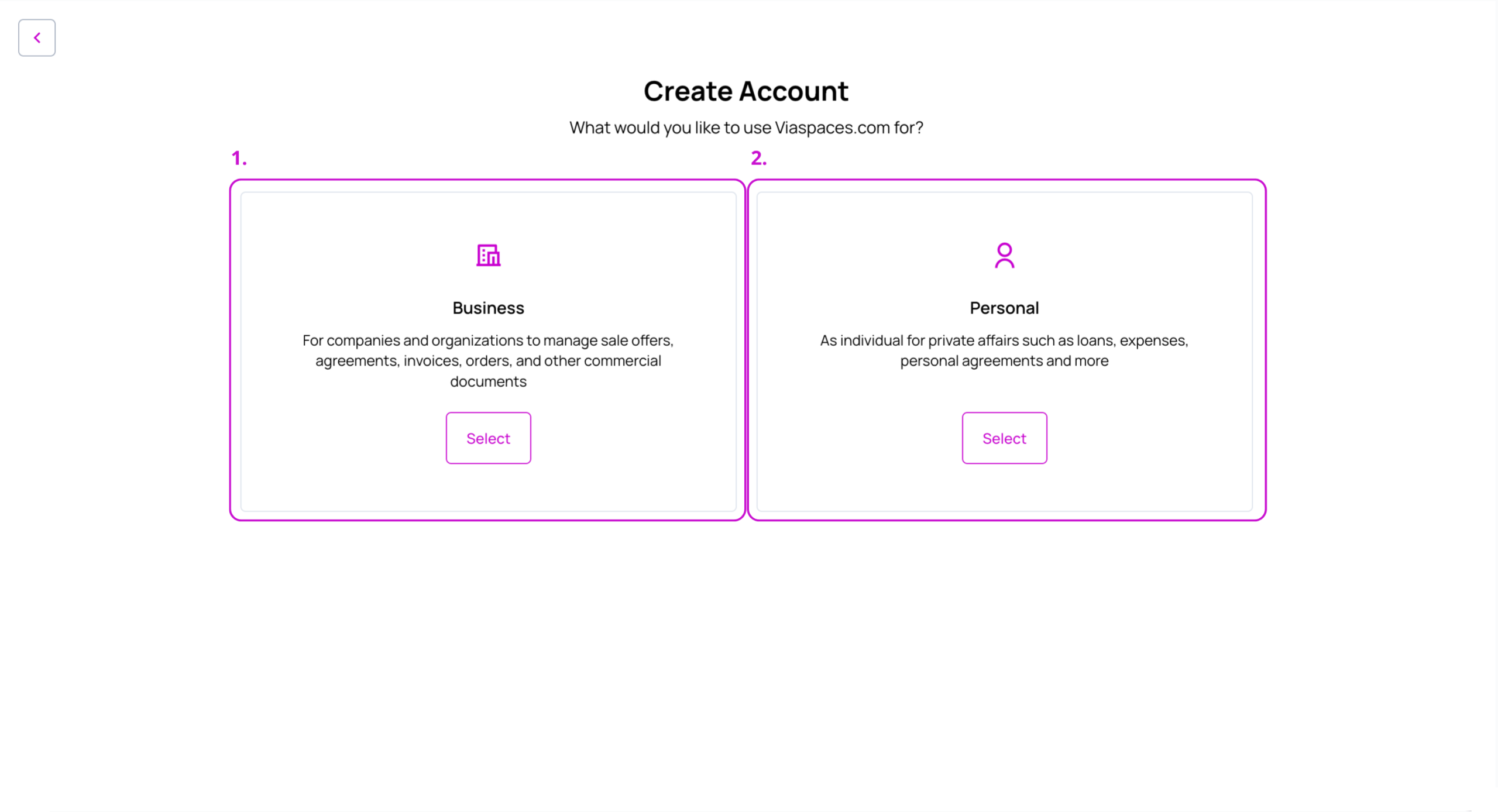
An account holds your documents, business partners, templates, and settings. You create it from your user profile after signing up, and choose whether it is a Business account for a company or a Personal account for an individual.
Account Types #
The account type is selected at creation and is permanent.

Business Account #
Create from My Accounts → Add Account → Business Account.
- Select Business Account.
- Complete the fields below.
- Click Create.
| Field | Value |
|---|---|
| Account Nickname | Label shown in the account list. Unique per account. |
| Country | Country of registration. |
| Company Name | Registered company name. |
| Contact email. | |
| First Name, Last Name | Contact name. |
| Phone Prefix, Phone | Contact number. |
| Company ID | Business registration number. |
| Billing cycle | Monthly or Yearly. |
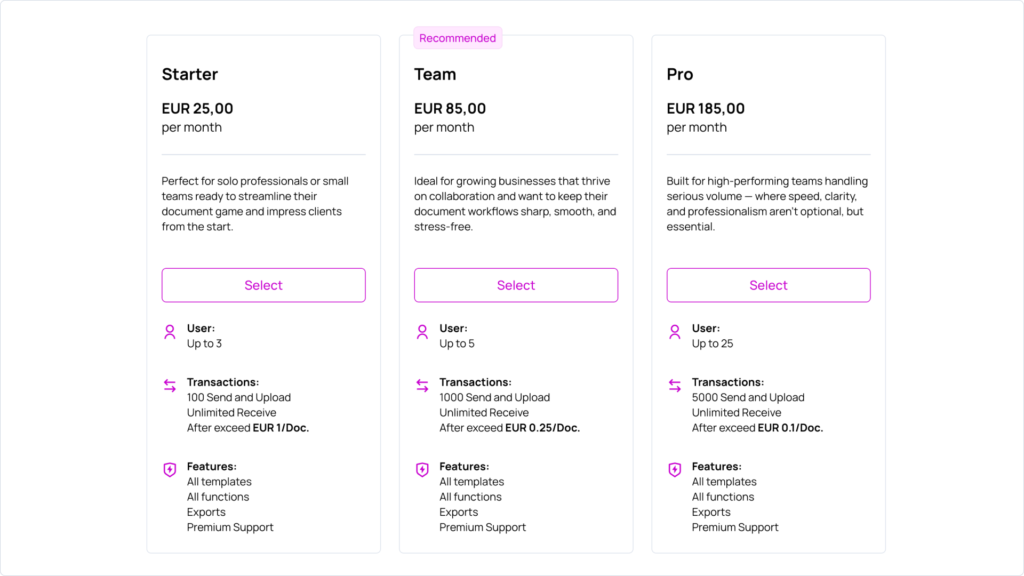
| Subscription plan | For example, Starter. |

Personal Account #
Create from My Accounts → Add Account → Personal Account.
- Select Personal Account.
- Complete the fields below.
- Click Create.
| Field | Value |
|---|---|
| Nickname | Label shown in the account list. Unique per account. |
| Contact email. | |
| First Name, Last Name | Contact name. |
| Phone Prefix, Phone | Contact number. |
| Country | Country. |
| Billing cycle | Monthly or Yearly. |
| Subscription plan | For example, Free Personal. |
Autofill #
Autofill applies to the Business type for companies registered in Switzerland, Czechia, or Slovakia.
Autofill runs automatically and completes Company Name, Address, and the country-specific Company ID and VAT format from the official registry.

Hint: The same autofill is available when creating a Business (Company) business partner registered in these countries.
Multiple Accounts #
The number of accounts is unlimited. Each account carries its own subscription and is billed separately.
| Action | Result |
|---|---|
| Select | Opens the account and loads its data. |
| Search | Filters the list by account or group name. |
| Reorder | Changes the display order of accounts and groups. |
| Switch Accounts | Moves to another account within the session. |
| Add Account | Creates a Business or Personal account. |
Accounts can be organized into groups on the My Accounts page. Groups support create, edit, delete, and selection of an account inside a group. These groups organize the entry screen and are separate from user-permission groups inside an account.
Subscription and Billing #
Each account carries its own subscription. The plan and billing cycle are selected at creation and changed in Settings → Subscriptions & Billing.
Account States #
| State | Meaning | Recovery |
|---|---|---|
| Active | Normal operation. | — |
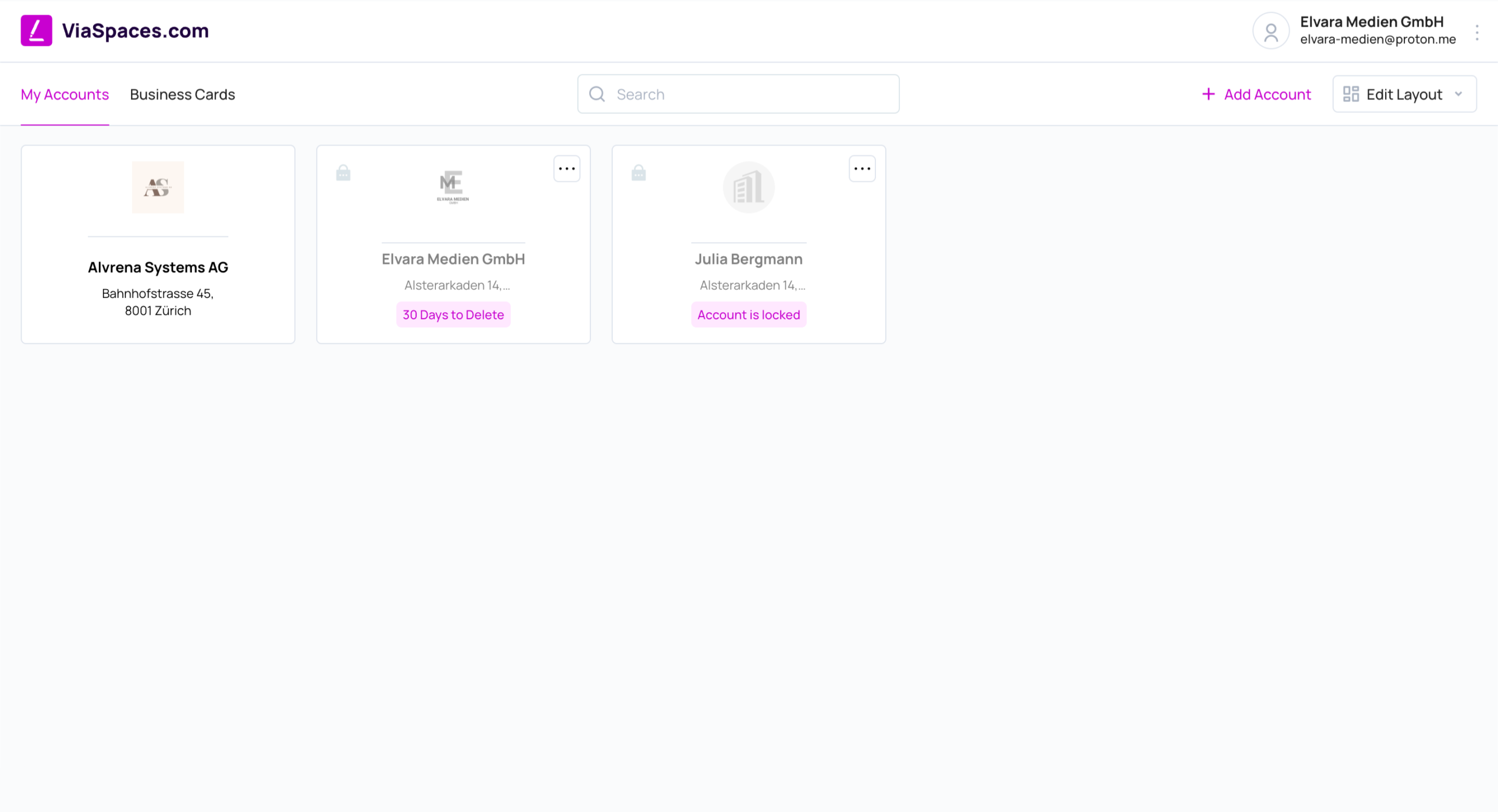
| Locked | Access is blocked. Displayed as “Account is locked”. | Recoverable by an Administrator. |
| 30 Days to Delete | Deletion is pending with a countdown. | Recoverable until the countdown ends. |
Account Groups #
Account groups combine several accounts into a single card on the My Accounts screen, so a user profile that manages related accounts sees them listed together instead of as separate cards.
Hint: Lock, delete, and recover actions are in Settings → My Account → General, under Settings.
Locking #
A locked account is blocked from normal use and retains its data. An Administrator performs the unlock.
Deletion #
The deletion countdown is 30 days and applies to all accounts and plans. The account is recoverable at any point within the countdown. Deletion completes when the countdown ends.
When an Administrator initiates deletion, a full archive of all documents and records is available for download before removal.
Effects of Account State #
| Area | Effect when the account is Locked or pending deletion |
|---|---|
| Documents | Document sending to the account is blocked. |
| Business Cards | The account is withheld from the target list when a business card is accepted. |
| Partner connections | Partners see the connection as Inactive. |