In this help doc: what a business partner is, how to add one, connection status, and how business cards are used to connect.
A business partner is a company or person an account exchanges documents with. Open Business Partners from the sidebar to see the partners for the current account.
What a Business Partner Is #
A business partner is any counterparty an account works with — a customer, supplier, or other organization involved in a document exchange. The partner record keeps their address, tax details, and contacts in one place, so this data fills in automatically on every document sent to them. There are two kinds.
A business partner is a counterparty that also has a ViaSpaces account. Both sides are connected on the platform, and documents pass directly between the two accounts — useful for regular partners who work in ViaSpaces, where every exchange stays tracked on both sides.
An external business partner is a counterparty without a ViaSpaces account. It is created manually and marked (External). Documents reach it through the External Gateway — a secure link sent by e-mail — so a partner can receive, approve, or sign without registering. This covers the common case of a client or supplier who is not on the platform.
Each partner is also set to a Business Partner Type: Business (Company) or Individual (Person).
The Business Partners List #
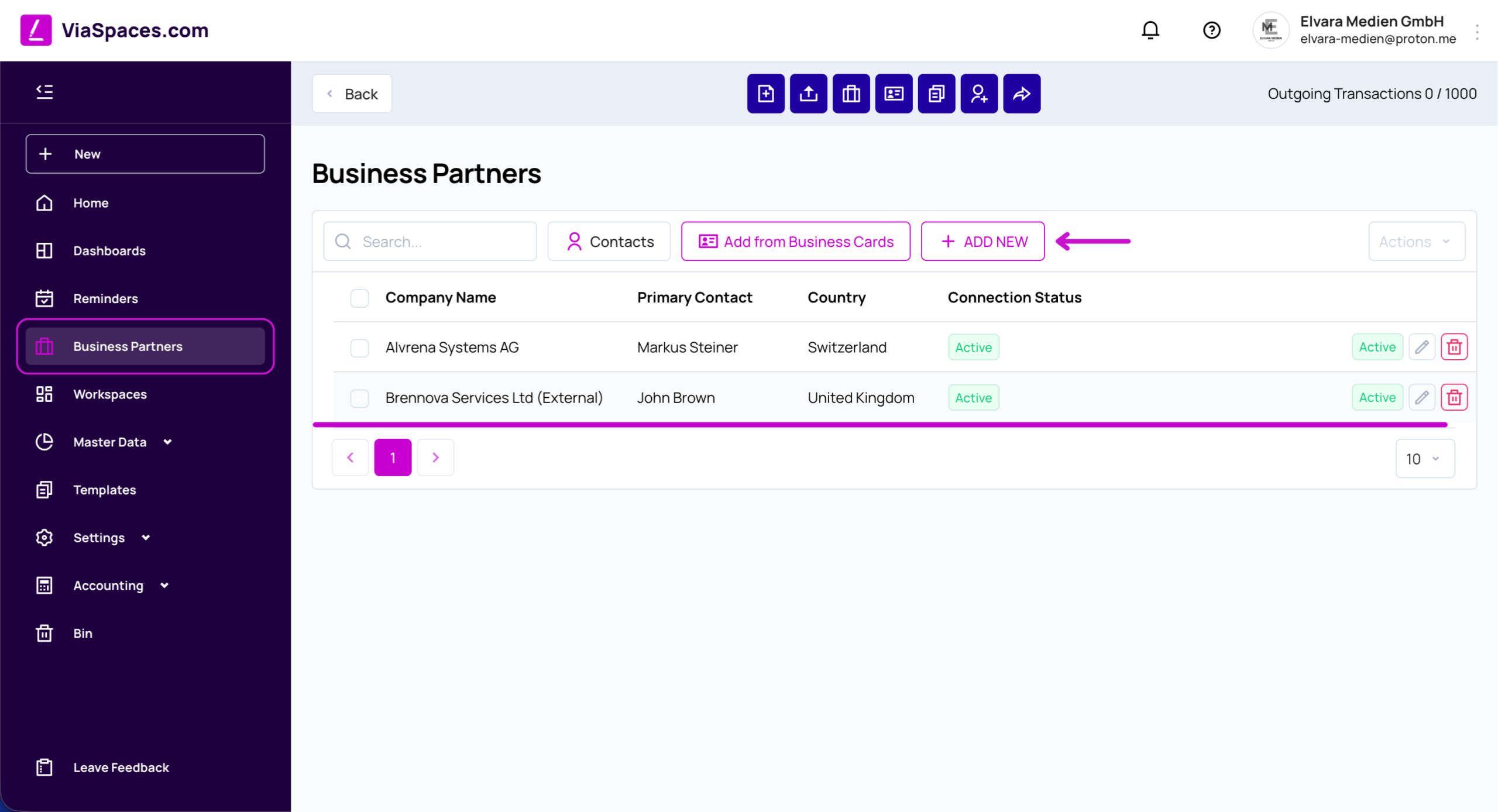
The list shows the partners for the current account, with Company Name, Primary Contact, Country, and Connection Status.
Search finds a partner in the list. Contacts searches across all business partner contacts, which helps when the company name is uncertain but the contact person is known. Add from Business Cards adds a partner from a received business card, and Add New opens the dialog to add a partner. Each row can be edited or deleted.
Adding a Business Partner #
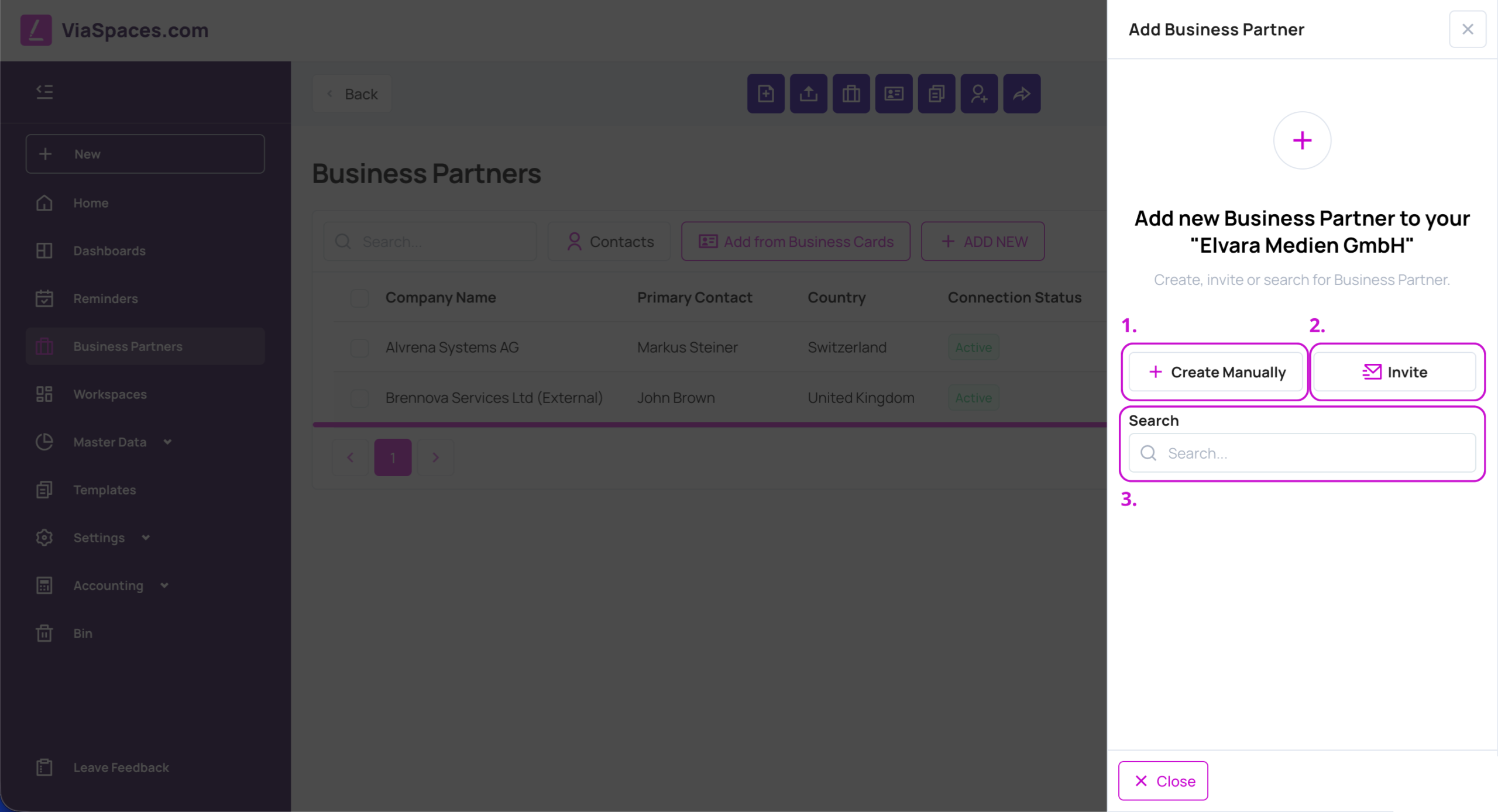
Add New opens three ways to add a partner, each for a different situation:
– Search — finds an existing partner already on ViaSpaces. Their details are pulled from their account, so no data is retyped.
– Create Manually — creates an external partner, with details entered by hand. Used for a counterparty not on the platform.
– Invite — sends a business card by e-mail to connect with another platform user.

Note: When an existing partner is added, their details are copied from their account at that moment. Later changes they make to their own data do not update the copy automatically, and there is currently no notification of such a change. Review a partner’s details when accuracy matters.
Create Manually #
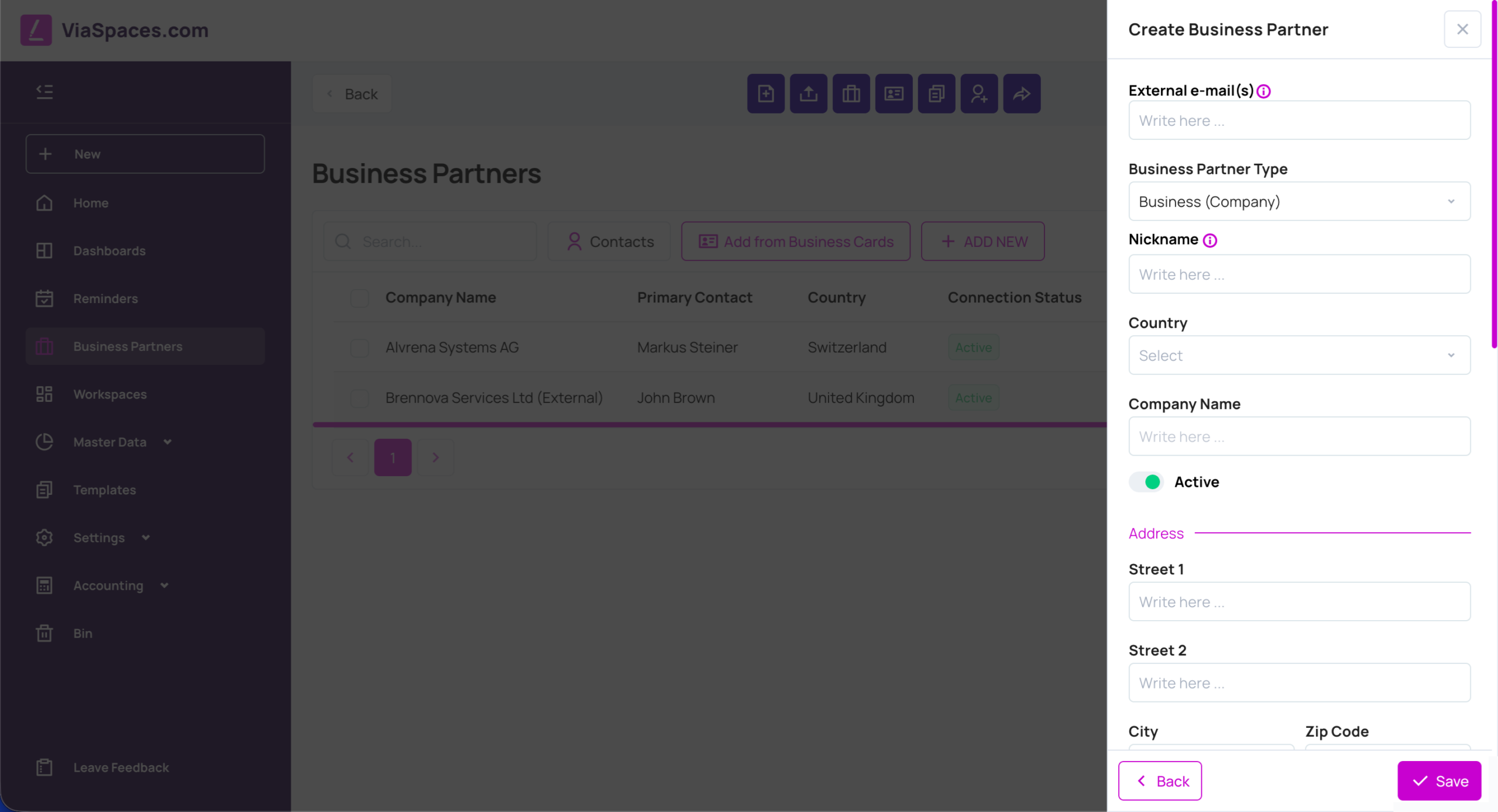
Create Manually opens the Create Business Partner form and produces an external partner.
The general details are the External e-mail(s), the Business Partner Type (Business or Individual), a Nickname, the Country, the Company Name, and an Active switch. The Address section holds Street 1, Street 2, City, Zip Code, State / Province / Region / Canton, and Country. Under Tax & Registrations are the Company Registration Number (for example EIN or CRN) and the Tax Registration / ID. The Primary Contact holds Title, First Name, Middle Name, Last Name, E-mail, and Phone No.
Business Partner Tags are labels added with Add. Tags group partners by any scheme that fits the business — region, industry, or account manager — and make them easy to filter later. Save with Save.
Business Partner Detail #
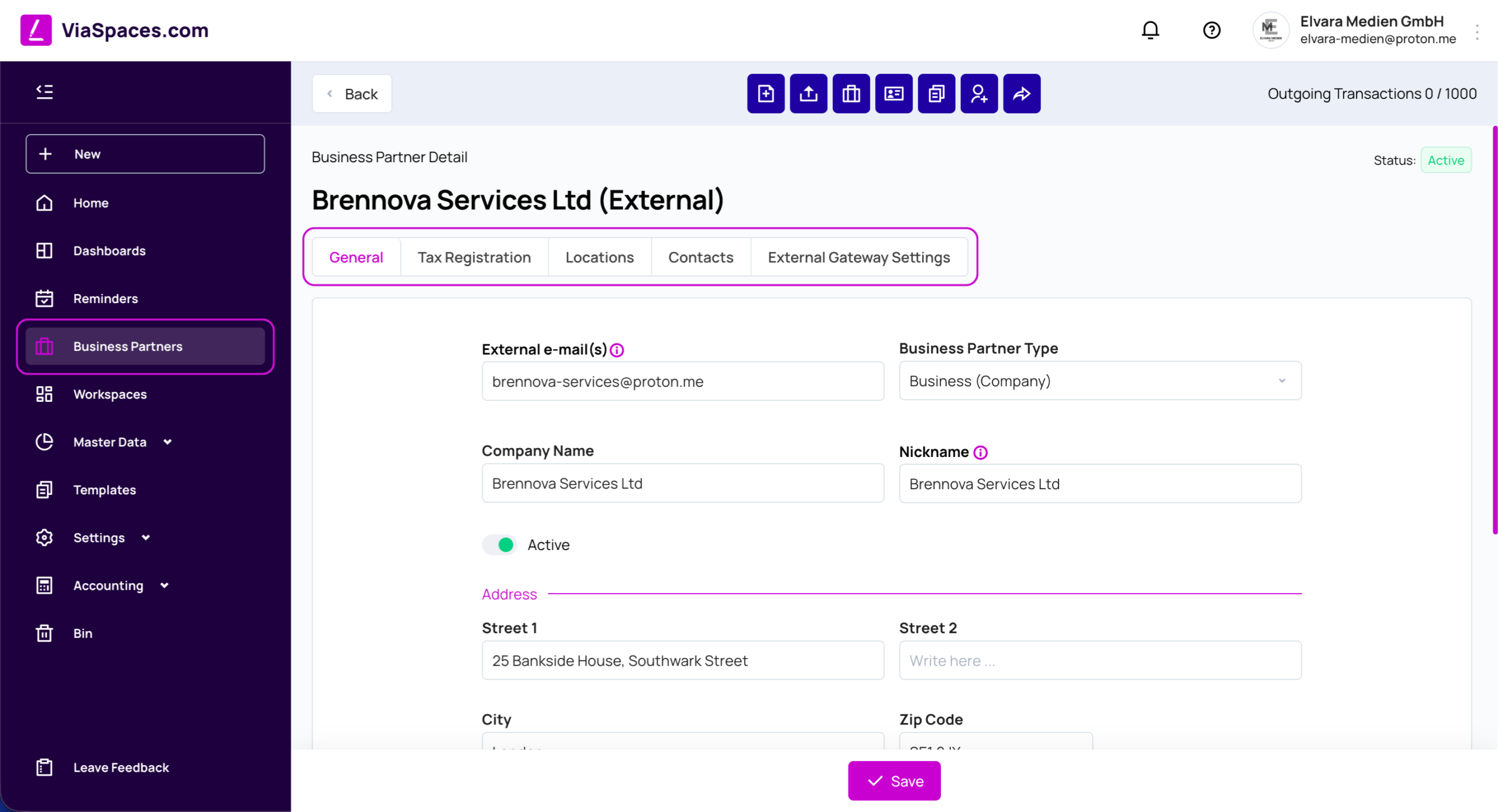
An existing partner opens in Business Partner Detail, with the Status shown in the top-right corner. The detail is organized into tabs:
– General — e-mail, type, Company Name, Nickname, Active, address, Tax & Registrations, and tags.
– Tax Registration — tax registrations by Country, Tax Type, and Identification Number. Add one with Add Tax Type. Used for partners that trade under more than one tax registration.
– Locations — additional addresses, for a partner with several branches or delivery sites.
– Contacts — contact people for the partner.
– External Gateway Settings — security and delivery settings for an external partner.
External Gateway Settings #
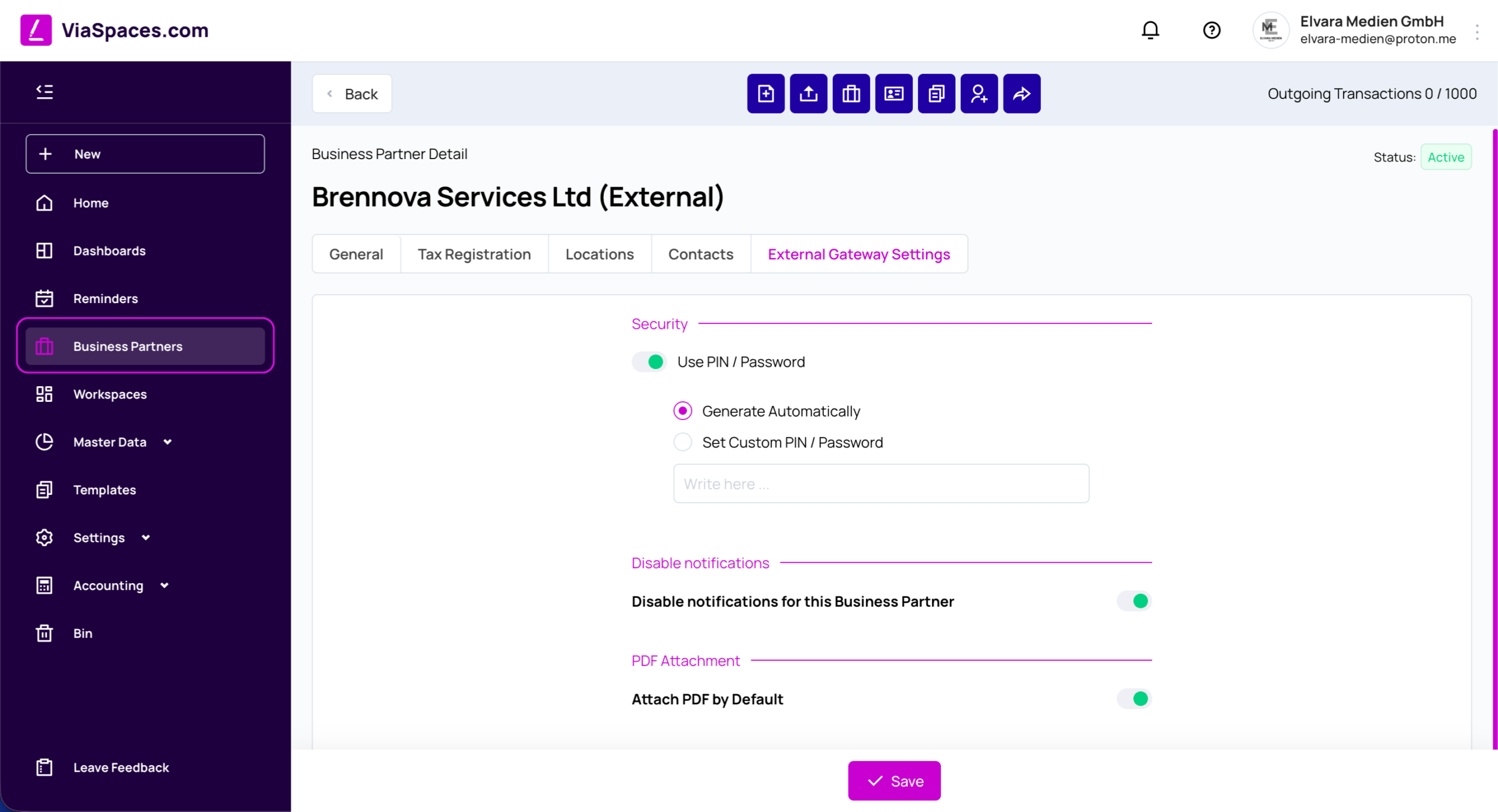
For an external partner, the External Gateway Settings tab controls how the partner receives and acts on documents.
Use PIN / Password protects gateway access, adding a layer of security when documents are sensitive; the PIN is either generated automatically or set as a custom PIN or password. Disable notifications for this Business Partner stops notifications to the partner. Attach PDF by Default attaches the document PDF to notification e-mails, so the partner has the document on hand without opening the link.
Note: The External Gateway is how partners without an account view, approve, reject, or sign documents. See the External Gateway page for the full flow.
Autofill for Company Partners #
When creating a Business (Company) partner registered in Switzerland, Czechia, or Slovakia, entering the Company ID fills the company details from the official registry. This saves retyping and keeps a partner’s registered name and address exact. Autofill runs while creating a partner. It does not apply to an existing partner, whose details come from their own account.
Connection Status #
Every partner has a connection status, shown in the list and on the detail page.
| Status | Meaning |
|---|---|
| Pending | An invitation is sent and not yet answered. |
| Active | The connection is live. Documents can be exchanged. |
| Inactive | The connection is paused. |
| Blacklisted | The connection is declined and blocked. |
Documents can be sent only to a partner whose status is Active. Inactive is the way to shelve a dormant partner without losing the record.
Note: A partner set to Inactive can be returned to Active. Reactivation goes through Pending for re-approval by both sides.
Business Cards #
A business card is a digital company profile used to connect two platform accounts — the platform equivalent of handing over a company card at a meeting. It carries the sender’s details so the recipient can add them as a partner in one step, with no manual entry.
Business cards exist above accounts, at the My Accounts level: one received card can be added as a partner into more than one account, the way a paper business card can be filed in several places. This suits a user who runs several accounts and works with the same partner across them.
Sending a Business Card #
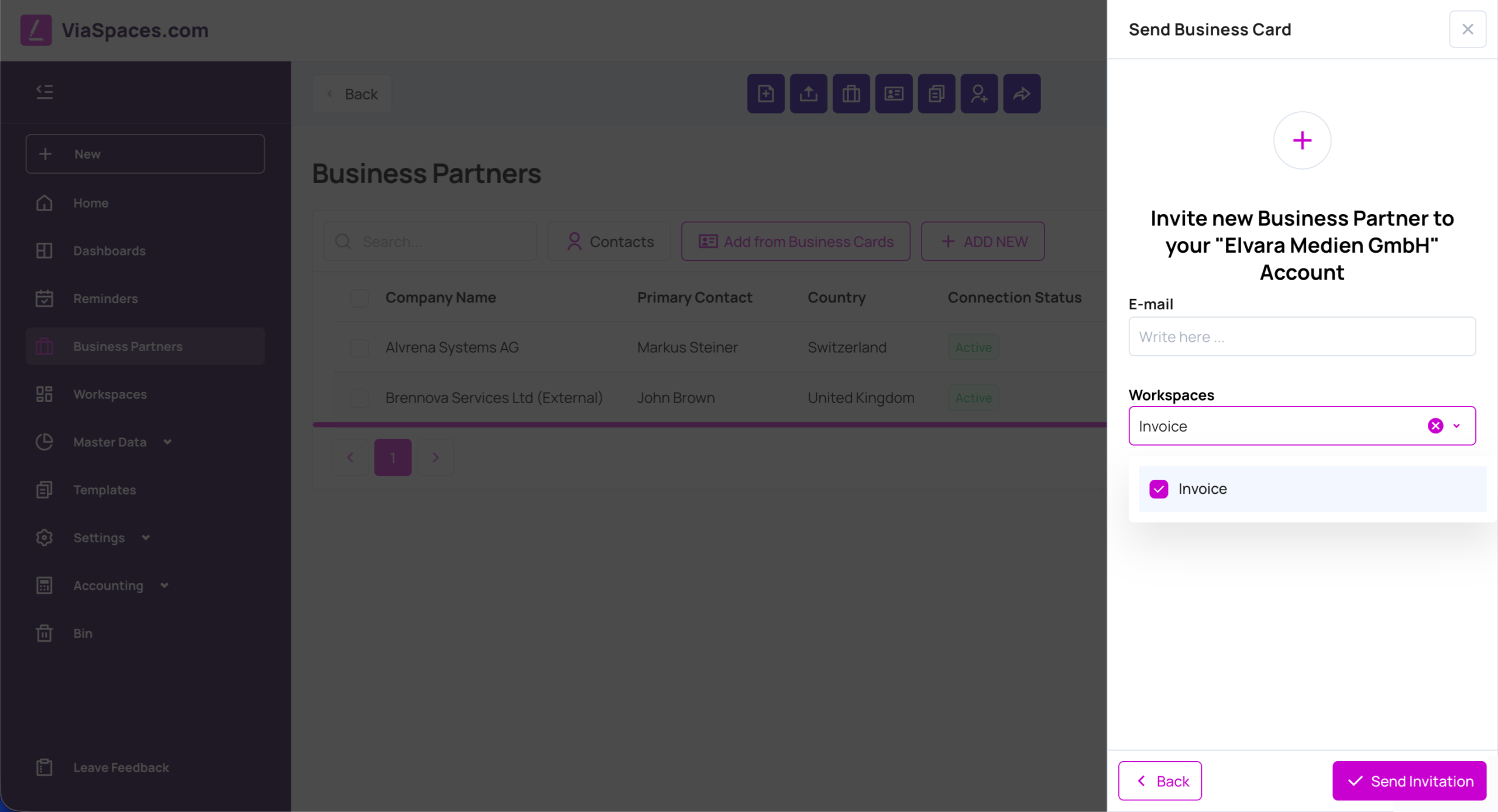
Invite sends a business card:
- In Add New, choose Invite.
- Enter the partner’s E-mail.
- Select the Workspaces to share.
- Click Send Invitation.
Note: The shared workspace is where the partner can send documents once connected.
Receiving and Using a Business Card #
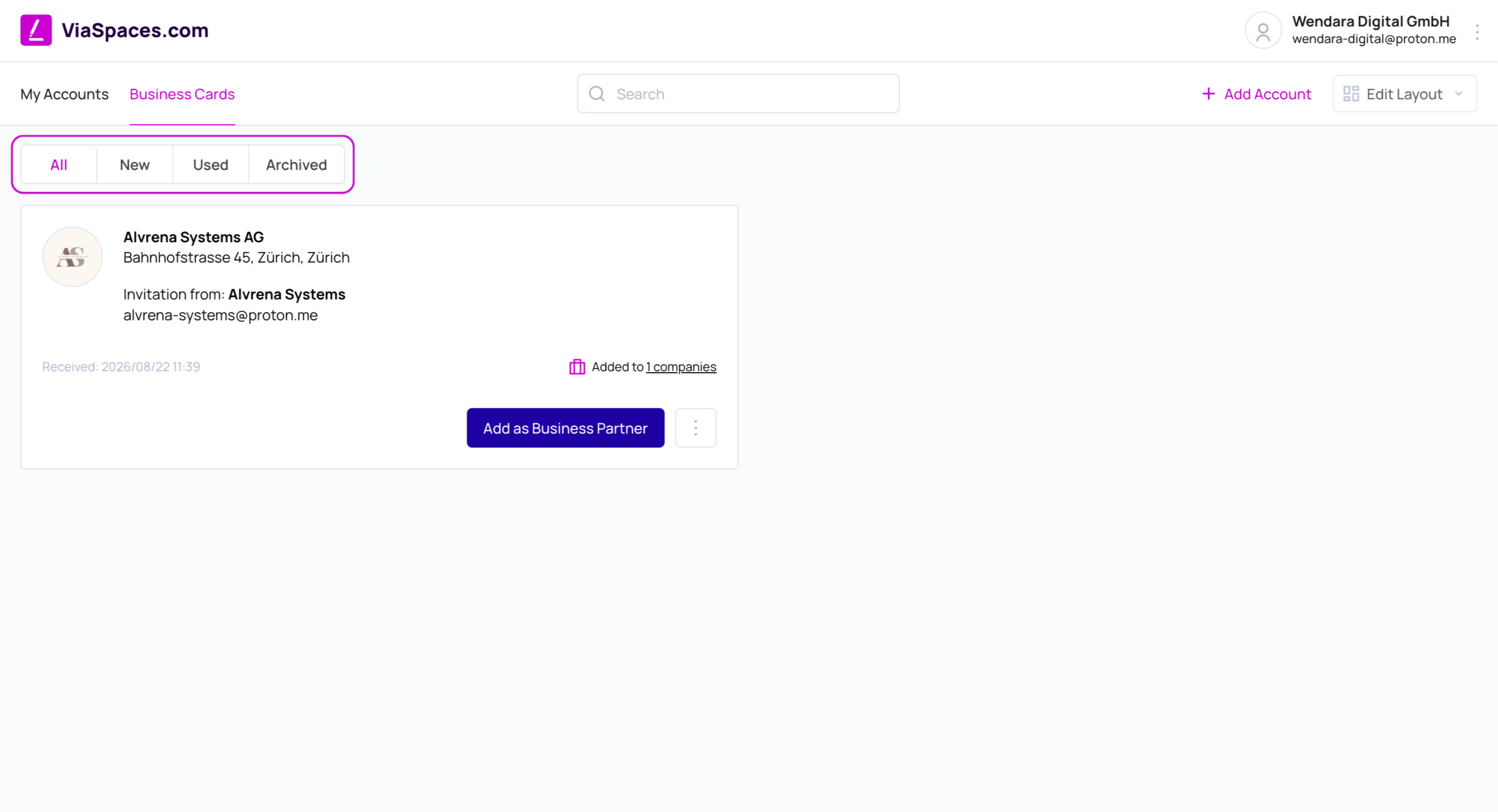
Received cards are on the Business Cards screen, next to My Accounts. They are organized into tabs:
| Tab | Shows |
|---|---|
| All | Every card. |
| New | Cards not yet used. |
| Used | Cards already added as a partner. |
| Archived | Cards moved out of the active list. |
Each card shows the sender, the received date, and the accounts it has been added to (for example, “Added to 2 companies”). Add as Business Partner files the card into an account, creating the partner there.