
In this help doc: what a template is, how to find one in the Library, how to import, activate, and edit one, and what document type, subtype, and value type mean.
A template is a reusable document layout. It defines the structure and fixed content of a document, and marks where account, partner, and line-item data is filled in automatically. Open Templates from the sidebar to work with them.
What a Template Is #
A template is the starting point for every document. Instead of building a document from scratch each time, a template holds the layout, the wording, and the field placeholders once, and each new document made from it pulls the current data — company details, partner details, line items, totals — into place. This keeps documents consistent and removes repeated typing.
A template can come from the ViaSpaces Library (a shared catalog), be imported by ID, or be built from scratch in the Template Builder. Building your own template is covered on the Advanced topics page.
The Templates Page #
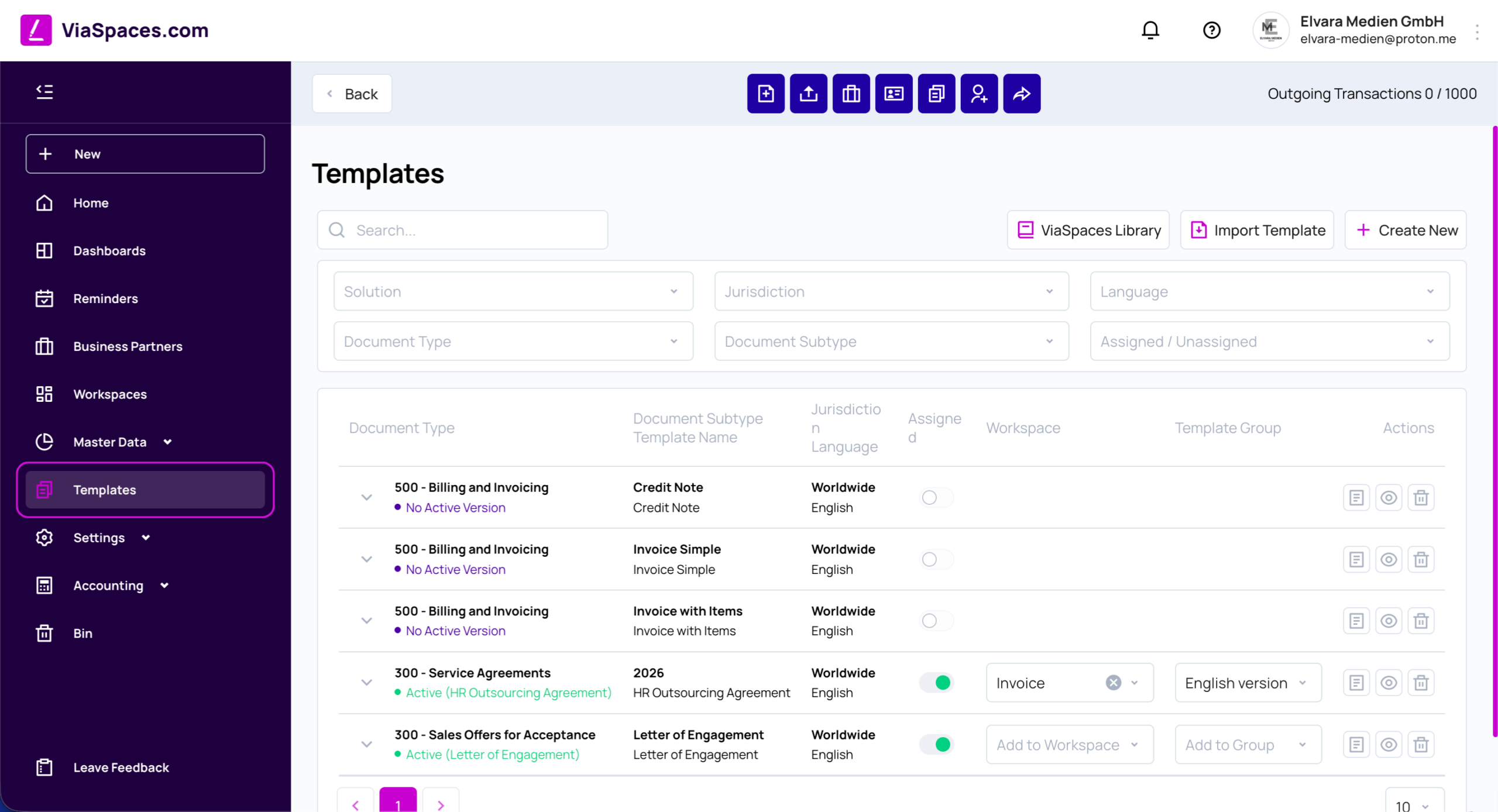
The Templates page lists the templates available to the account. Each row is a template, grouped by its versions, and shows the Document Type, Document Subtype and Template Name, Jurisdiction and Language, whether it is Assigned, its Workspace, and its Template Group.
Search finds a template by name. The filters narrow the list by Solution, Jurisdiction, Language, Document Type, Document Subtype, and Assigned / Unassigned.
Three buttons add templates:
- ViaSpaces Library — opens the shared catalog to import from.
- Import Template — imports a template by its ID.
- Create New — opens the Template Builder to build a template from scratch. See the Advanced topics page.
The Template Library #
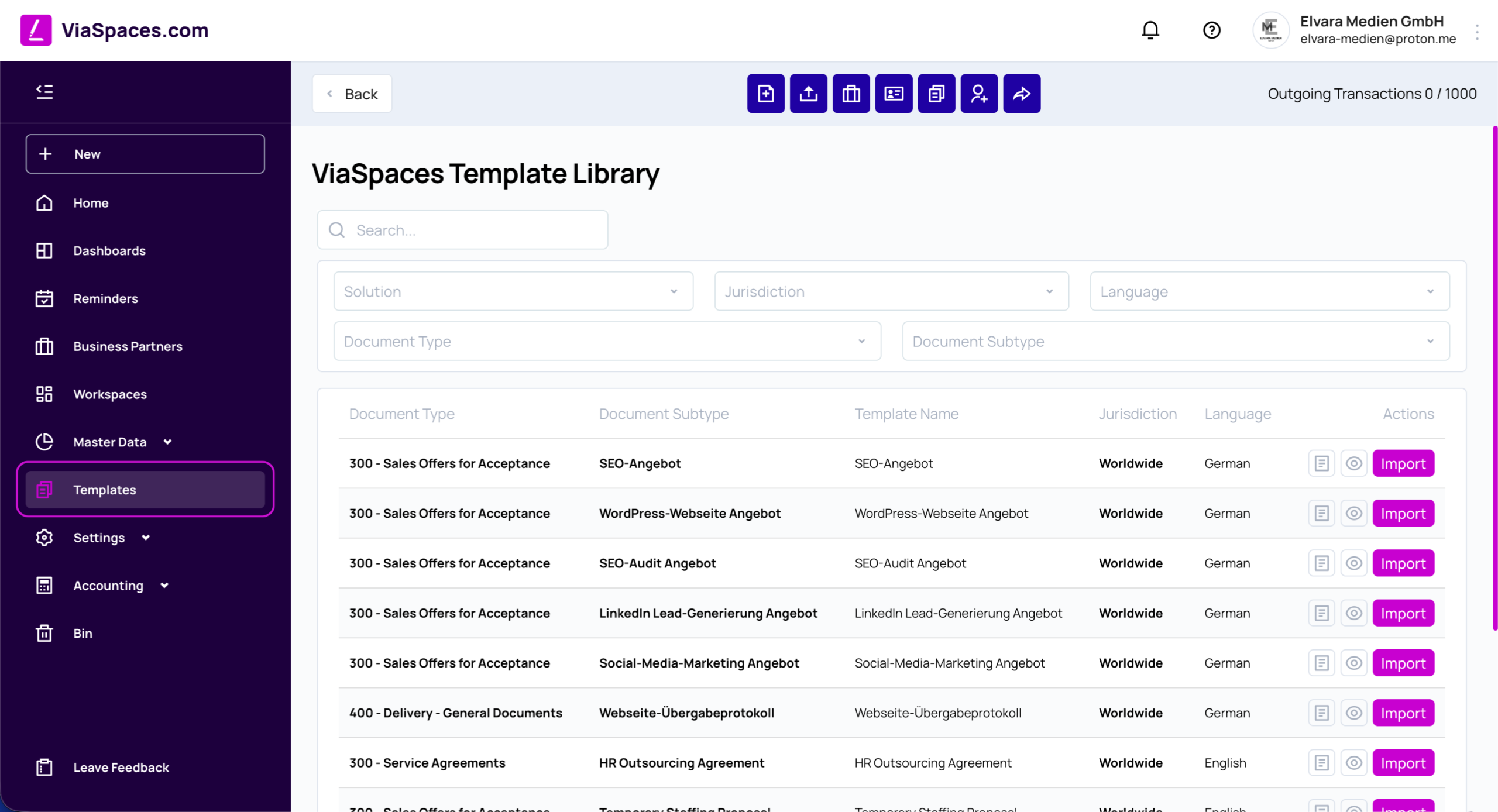
The ViaSpaces Library is a shared catalog of ready-made templates. It is filtered by the same fields as the Templates page — Solution, Jurisdiction, Language, Document Type, Document Subtype — so a template can be found for a specific purpose and country.
Each row has a Template Details view and an Import button. Template Details shows the Template Name, Template Author, Jurisdiction, Document Title, and the Template ID, which can be copied to import the template elsewhere.
Importing a Template #
A template is imported in two ways:
- From the Library, click Import on a row.
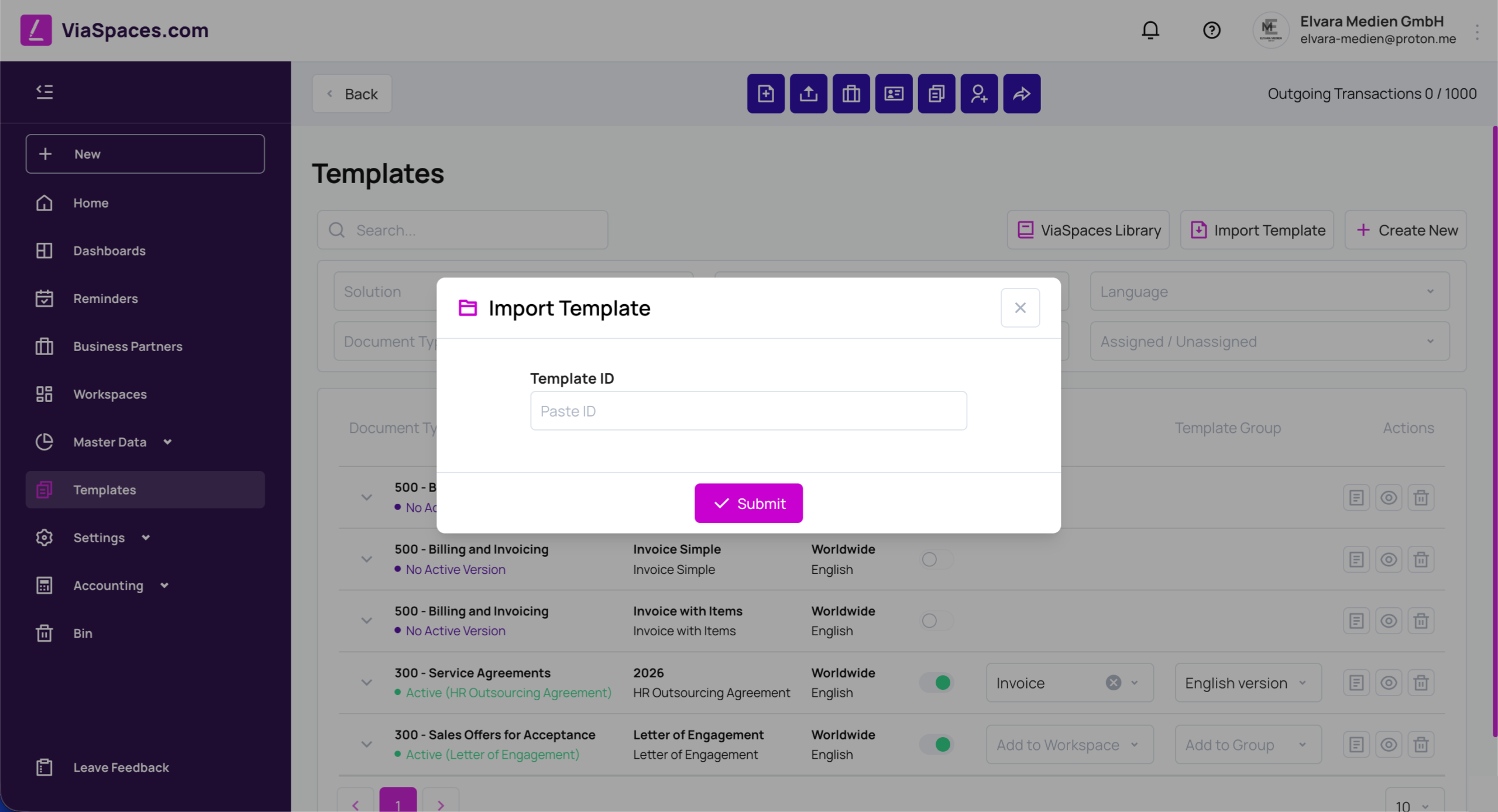
- From the Templates page, click Import Template, paste the Template ID, and click Submit.
The imported template appears in the Templates list, ready to activate.
Template Versions and Activation #
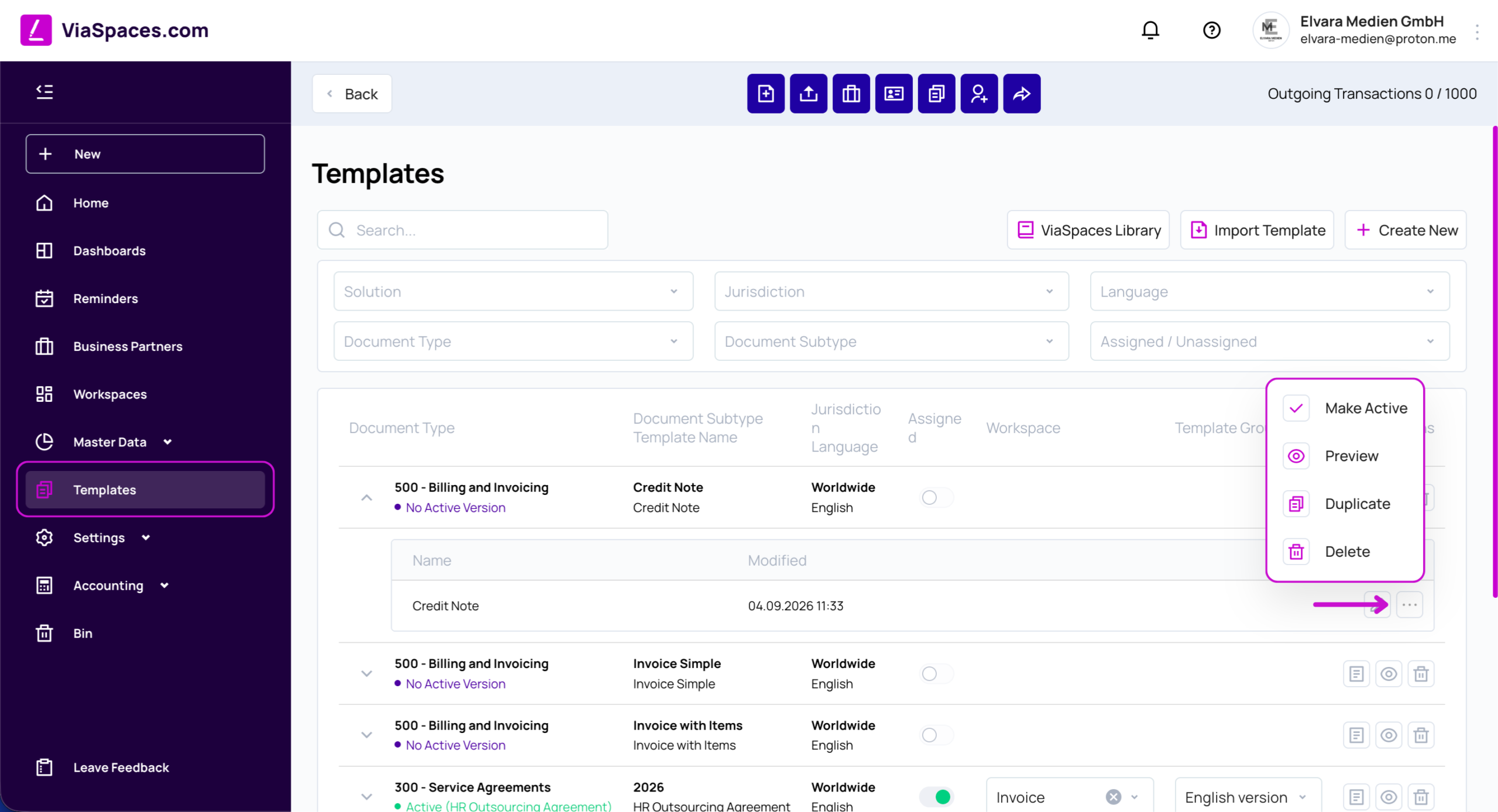
A template can hold several versions. One version is active at a time, and the active version is the one used when a document is created. A template with no active version is marked No Active Version and cannot be used until a version is activated.
Each version row has actions:
| Action | Function |
|---|---|
| Make Active | Sets the version as the one used for new documents. |
| Preview | Opens a PDF preview of the template. |
| Duplicate | Creates a copy of the version to work from. |
| Delete | Removes the version. |
The list also shows the version’s status — for example, “Active (HR Outsourcing Agreement)” or “No Active Version”.

Note: Versions let a template change over time without losing earlier layouts. An older version stays available to activate again.
Assigning a Template to a Workspace #
The Add to Workspace column assigns a template to a workspace. A workspace is an access boundary inside the account: users and groups assigned to a workspace see the documents and templates assigned to it. Assigning a template to a workspace makes it available to that workspace’s members, so each team works with its own set of templates. Full workspace setup is covered on the Workspaces page.
The Template Group column groups related templates under a shared name, which keeps versions of the same document organized in the list.
Editing a Template #
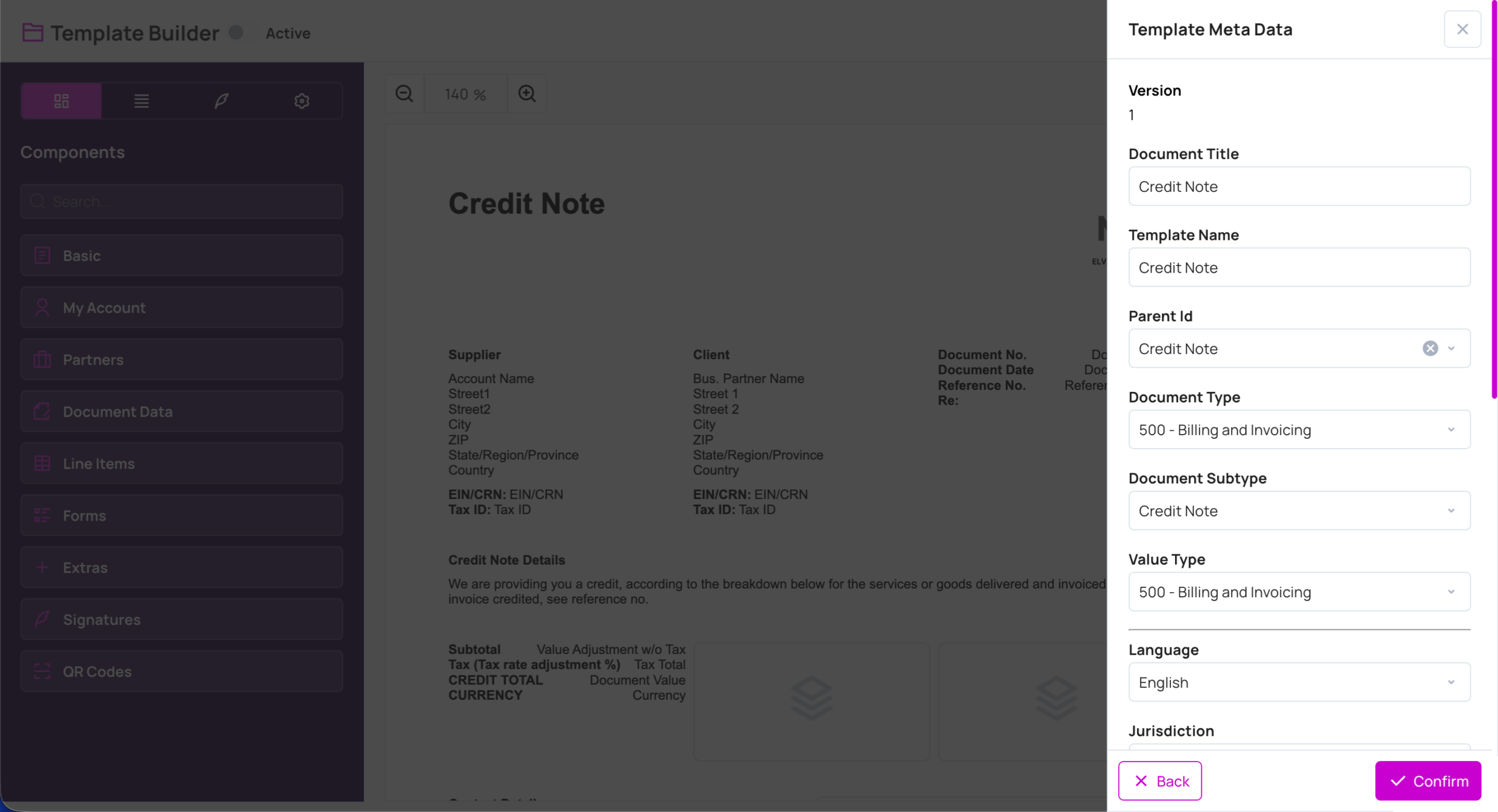
An existing template opens in the Template Builder for layout changes, and its descriptive data is edited in the Template Meta Data window.
The Template Meta Data window holds:
- Version — the version number.
- Document Title — the title shown on the document.
- Template Name — the name in the Templates list.
- Parent Id — the template this version derives from.
- Document Type and Document Subtype — the document’s classification.
- Value Type — see below.
- Language and Jurisdiction — the template’s language and legal region.
- URL Link, Description, Instructions, Additional Info — descriptive fields.
- Solution — the solution the template belongs to.
Confirm saves the metadata. Saved values appear in the Templates list and in Template Details.
Document Type, Subtype and Value Type #
Every template is classified so documents made from it are grouped, filtered, numbered, and valued correctly.
Document Type is the top-level category of the document — for example, “500 – Billing and Invoicing” or “300 – Agreements and Contracts”.
Document Subtype refines it further — for example, “Faktúra” or “Invoice with Items”. Type and subtype drive the Templates and Library filters and the numbering set in Settings, Document Controls.
Value Type is a field in Template Meta Data. It determines the category under which the document’s amount is recorded, so every amount is reported at the stage of the business case it actually belongs to. It is chosen from a searchable list of seven categories, the same seven used for Document Type.
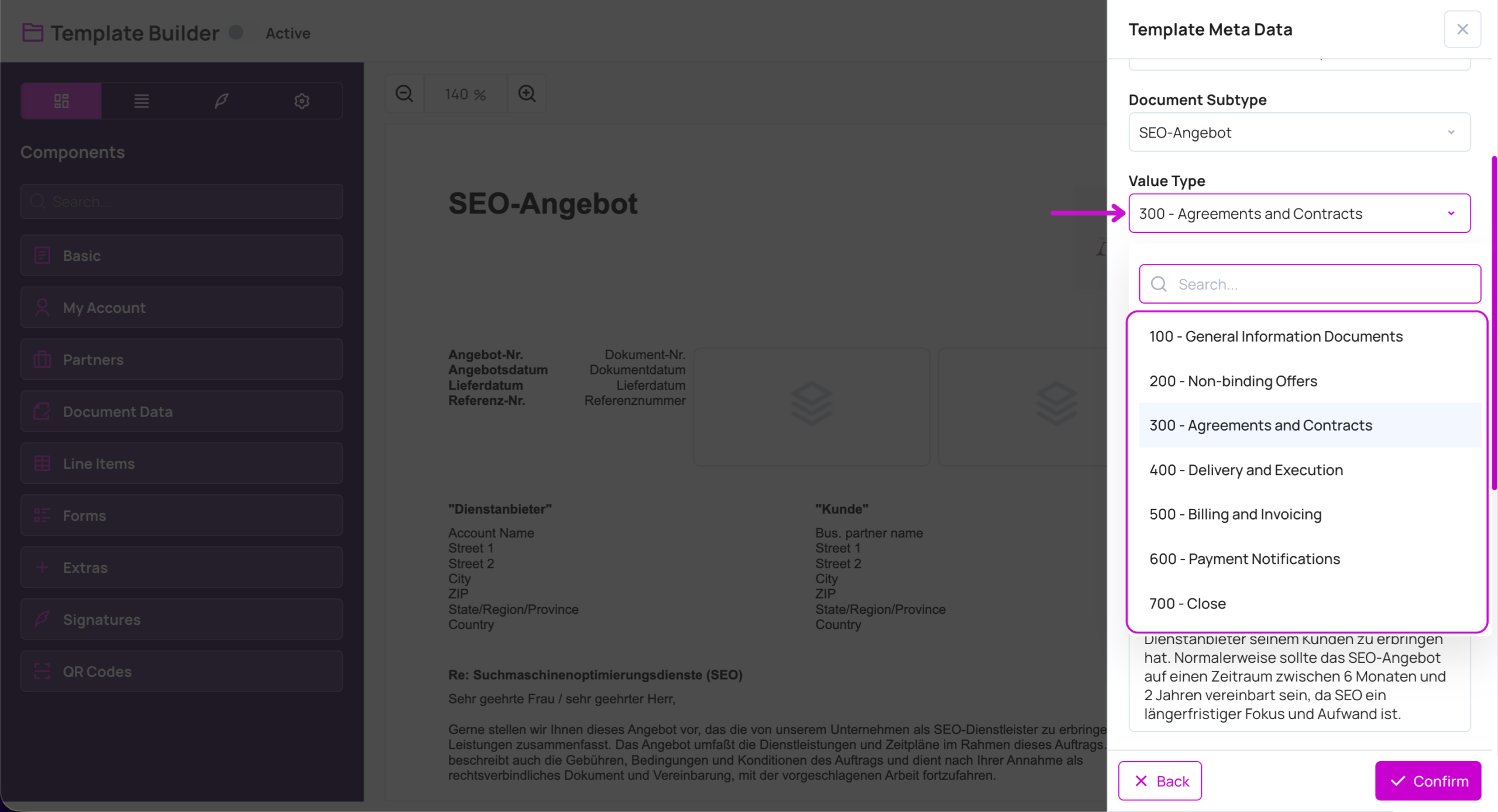
| Value Type | Typical documents | What the amount represents |
|---|---|---|
| 100 – General Information Documents | Cover letters, notices, statements, certificates | No commercial amount |
| 200 – Non-binding Offers | Quotations, offers, price lists | Indicative value — the counterparty has not committed to it |
| 300 – Agreements and Contracts | Contracts, framework agreements, confirmed orders | Committed value — agreed, not yet delivered or billed |
| 400 – Delivery and Execution | Delivery notes, handover protocols, work reports | Delivered value — performed, not yet billed |
| 500 – Billing and Invoicing | Invoices, credit notes, debit notes | Real value — a receivable, counted as actual income |
| 600 – Payment Notifications | Payment advice, payment confirmations, payment reminders | An amount already billed under 500, tracked as a payment movement |
| 700 – Close | Closing and settlement documents that end a case | The closing value of the case |
The categories follow the order of a business case, and the value hardens along the way. An amount in 100 to 400 is a planning figure: an offer can expire unaccepted, a contract can be delivered in parts, and a delivery note is not yet a claim for payment. The amount becomes real income at 500 – Billing and Invoicing, where the document creates a receivable. Documents in 600 – Payment Notifications carry an amount that was already billed, so they move the payment status of the invoice instead of adding new value.
Set the Value Type on the template to match the role of the document. A quotation template set to 200 keeps a large quotation in the pipeline figures without inflating invoiced revenue. An invoice template set to 500 makes the document total count as income and follow the Paid, Unpaid, and Partially Paid payment widgets on the Dashboard.
Note: Value Type is a template setting, so every document created from that template inherits it. Changing it on a template applies to documents created afterwards.